|
Manual Installation for Windows
1. Create the FastExcelV5 folder
Extract the FastExcelV5 folder from the downloaded zip file to your chosen location
The FastExcelV5 folder contains up to 3 sub-folders, depending on which Manual Installer you chose:
FastExcel V5 Profiler
FastExcel V5 Manager Pro
FastExcel V5 SpeedTools
Each of these sub-folders contains an .XLAM file you need to load into Excel using Excel's Addin Manager.
2. Unblock all the XLAM, XLL and DLL files
Windows often blocks downloaded files.
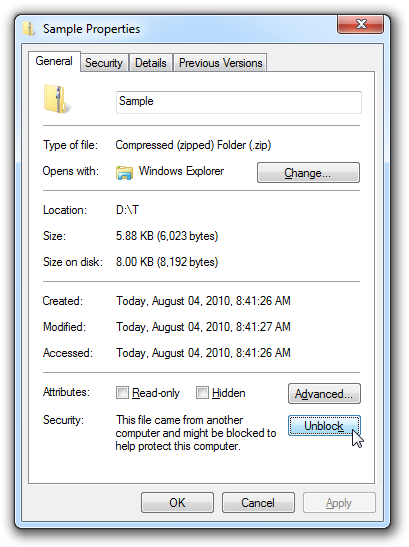
To unblock a file:
The files you may need to unblock are:
oFastExcelV5/FastExcel V5 Profiler/FxlV5Profiler.xlam
oFastExcelV5/FastExcel V5 Profiler/QlmCLRHost_x64.dll
oFastExcelV5/FastExcel V5 Profiler/QlmCLRHost_x86.dll
oFastExcelV5/FastExcel V5 Profiler/QlmLicenseLib.dll
Browse to each file, Select and Right-click it then select Properties
Click the Unblock button
3. Make the FastExcelV5 folder a Trusted Location
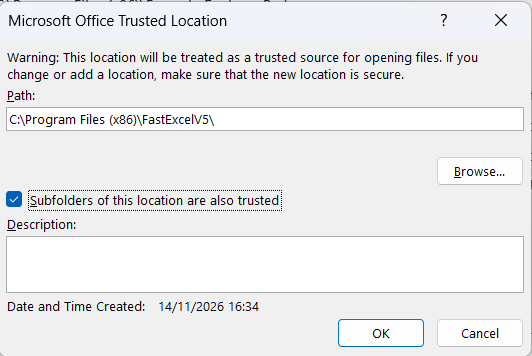
Start Excel and use File->Options->Trust Center->Trust Center Settings->Trusted Locations->Add new location->Browse to your FastExcelV5 folder->Check Subfolders of this Location are also trusted->OK
4. Use Excel's Addin Manager to install each FastExcel V5 addin
For Excel 2021 and Excel 365 Click File->Excel Options->Addins->Manage Excel Addins->Go… Press Browse and locate the FastExcelV5 folder.
In the FastExcel V5 Profiler sub-folder select the FxlV5Profiler.xlam file and click OK to return to the Addins form.
If asked “Do you want to copy this Addin to the Addins folder?” reply NO.
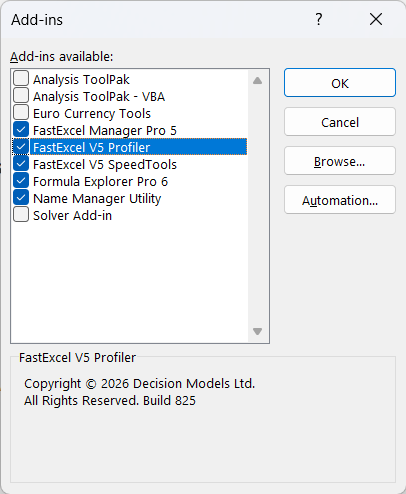
The Excel Addins form should now show the FastExcel V5 addins with a checkmark. Click OK to finish.
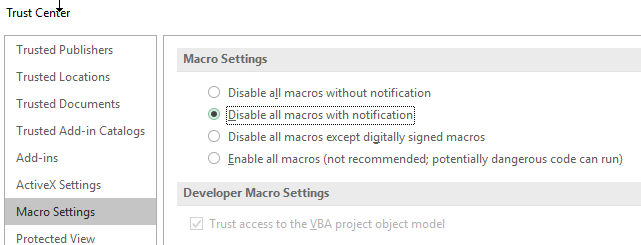
5. Recommended Trust Center Settings
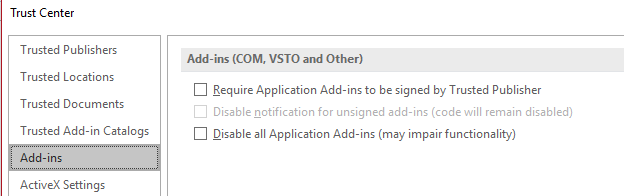
The recommended settings for addins and macros are:
|

