Excel Lambda Explorer 6
Excel Lambda Explorer is a FREE Excel Addin tool designed to make it easy to explore, understand and debug Excel Lambda Functions.
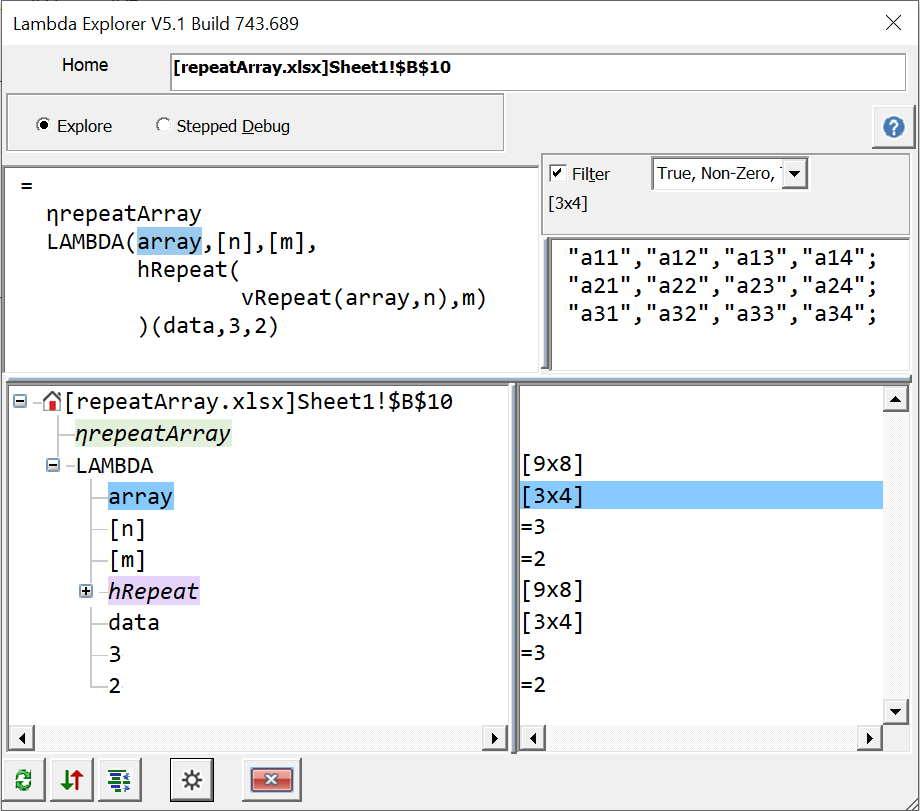
Click the purple nodes to expand a Named Lambda to its formula, or click the light green nodes to contract an expanded Named Lambda
- Explore Lambda formulas from worksheet Cells.
- See the evaluated results for most components of the formula.
- Dynamically expand and contract Named Lambdas.
- Clickable Indented formula View.
- Tree View of each component of the formula.
- Scroll and Filter array results in the resizeable Results Box.
- Step-by-Step Formula debug.
- Step forward and backwards using the right and left arrow keys.
- See and explore intermediate array results.
- Explore formulas using your Excel language and settings.
- Use Lambda Explorer alongside the Advanced Formula Environment addin.
- Modeless resizable form allows easy selection of worksheet formulas.
- Extensive settings to control text size and options.
- Download Lambda Explorer 6 for Windows.
- Latest build is 980.725:
- Recent changes include:
- Understand, Explore and debug formulas
- Auto-Indent cell formulas
- Debug Lambdas and Recursive Named Formulas
- Supports Formulas in 21 Languages
- Supports all the new Excel Functions (PIVOTBY, TRIMRANGE, REGEX ...)
- Click the purple components to expand a Named Lambda to its formula, or click the light green component to contract an expanded Named Lambda.
Installing Lambda Explorer
The downloaded file is a code-signed XLAM addin file.
Copy the XLAM file from your Downloads folder to a folder of your choice.
Unblock the XLAM file (right-click the file, choose the Properties Tab and Unblock).

Adding the XLAM to Excel
Use the Excel Addin Manager to install or uninstall Lambda Explorer.
Or for single-session use just use Excel to open the XLAM file.
- Click the File Tab
- Select Options
- Click Addins
- Select Excel Addins in the dropdown
- Click Go
- Click Browse and locate the LambdaExplorer.xlam file
- Click OK
- Make sure that the Lambda Explorer Addin is checked
- Click OK to return to Excel
When successfully installed in Excel you should see this Lambda Explorer Tab

If the Lambda Explorer Tab is not visible make the Lambda Explorer Folder a Trusted Location
- Click the File Tab
- Select Options
- Select Trust Center
- Click Trust Center Settings
- Select Trusted Locations
- Click Add New Location
- Browse to the Folder where you stored the LambdaExplorer File
- Click OK to return to Excel
- Then close and restart Excel
Support, feedback and improvement suggestions
Use the FastExcel V4 Google Group to report problems and request improvements
|